
A connector can gain new tools after you first connect it. If Claude cannot find an action you expect, use Refresh tools list on the connector's page. You can update the list before trying a full disconnect and reconnect.
This guide shows the Claude interface captured on October 30, 2026, with LoomaScale as the example. It covers connectors in Claude's interface; Claude Code has a separate MCP setup.
How do you refresh tools in Claude?
1. Open Customize
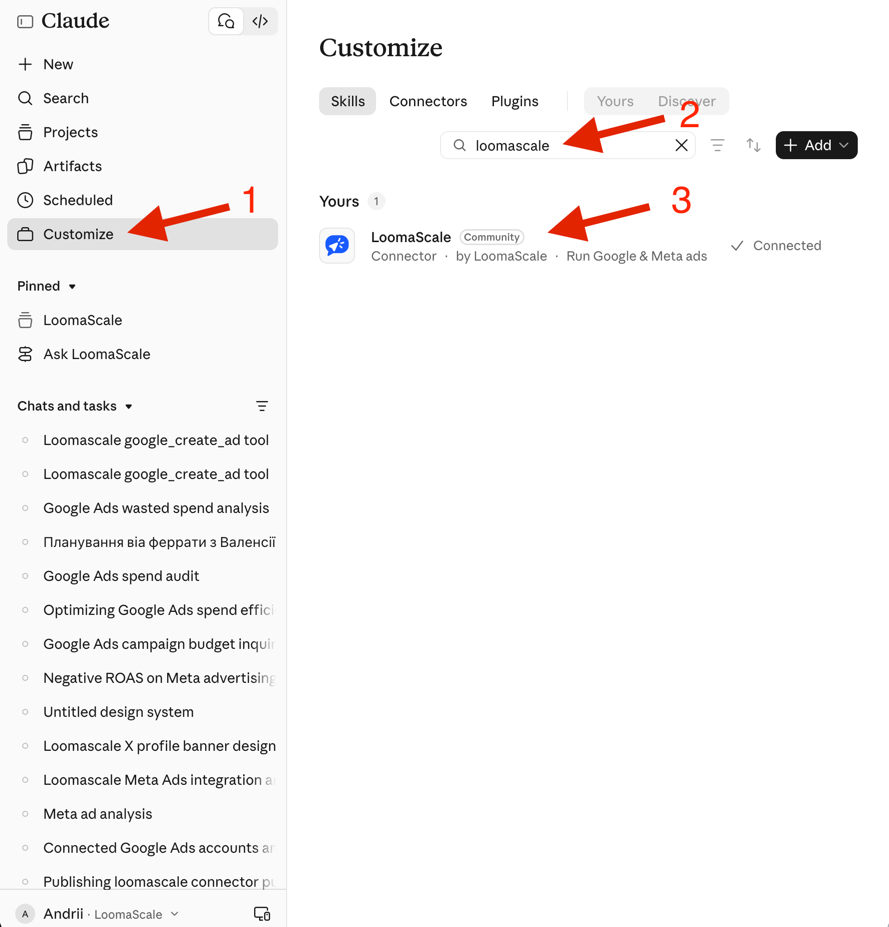
Click Customize in Claude's left sidebar. This opens the area where you manage skills, connectors, and plugins.
2. Search for the connector
Search for LoomaScale, or the name of the connector you want to refresh. Look for your existing connection. In the screenshot, LoomaScale appears under Yours with a Connected status.
3. Open the connected service
Click LoomaScale in the results to open its connector page. The first screenshot marks these three actions: open Customize, search, and select the connected service.
4. Choose Refresh tools list
On the connector's page, click the three-dot menu next to Disconnect, at the top right. Select Refresh tools list. The second screenshot highlights the exact menu item.
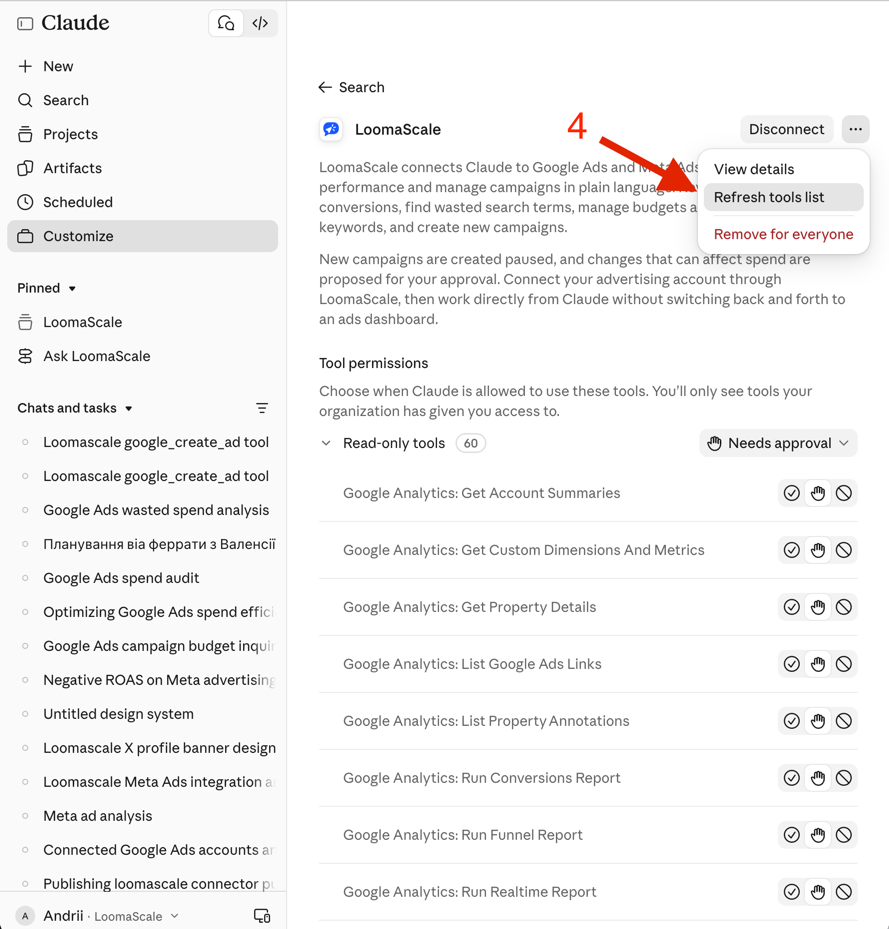
Use the refresh entry shown here. The neighboring Disconnect and Remove for everyone controls are separate connection-management actions; neither is needed for this refresh.
How do you check whether the refresh worked?
Review Tool permissions on the same connector page and look for the action you need. The tool names and number shown in the screenshot are an example, rather than a checklist of everything your connection should contain.
Then try a specific request. For a LoomaScale account with Google Analytics 4 connected, you could ask:
Use LoomaScale to list the Google Analytics 4 properties available to my connected account. Do not change anything. If the request fails, tell me whether the tool is unavailable or access is denied.
Check that Claude actually calls a connector tool and returns your account's result. A reply describing what Google Analytics can do does not verify the connection. If an existing chat still cannot find the tool, try a new chat and name LoomaScale explicitly.
What if Claude still cannot see the new tools?
Check tool permissions
A visible tool may be blocked. Check its permission on the connector page; an organization policy may require an administrator's help. Refreshing the list does not resolve an access restriction. See Anthropic's connector guidance for permission management.
Check the conversation's connector access
Claude can load connectors only when needed. Name LoomaScale in your request, or use + → Connectors → Tool access to review the conversation's loading mode. Anthropic explains the options in Manage Claude's tool access.
Check the account behind the connector
Discovering a tool and accessing its data are different checks. If Claude finds a Google Analytics tool but cannot retrieve your properties, verify the Google connection and account access in LoomaScale. A tool-list refresh is not a replacement for signing in to the underlying service.
Reconnect if the connection itself has failed
If Claude asks you to authenticate again, follow that sign-in flow. If the connector remains unusable after the refresh and access checks, reconnect it. For initial setup, use the Claude connection guide.
What should you try next with LoomaScale?
Once the connector responds, use a concrete task from the Claude prompts for Google Ads library or follow the Google Ads audit with Claude. Both guides focus on working with your account after connection.
If the missing tools are in ChatGPT, use the separate ChatGPT MCP refresh guide. Its menu path is different from Claude's.