Connect Claude Code to Meta Ads with LoomaScale
Connect Claude Code to Meta Ads by installing the LoomaScale plugin with two commands and signing in once in your browser. Claude Code can then review Facebook and Instagram campaigns, ad sets and placements from your terminal, and make the changes you ask for inside your spend cap. No Meta app, access token or config file is needed.
Updated
Connection overview
- Connect Meta Ads in LoomaScale and set a daily spend cap.
- In Claude Code, run /plugin marketplace add loomascale/agent-plugin.
- Run /plugin install loomascale@loomascale.
- Run /mcp, select loomascale and sign in to LoomaScale in your browser.
- Check the ad account with a read-only prompt, then run a wasted-spend review.
What you need before you start
- Claude Code with plugin support. If /plugin is not recognized, run claude update first.
- A LoomaScale account with Meta Ads connected and a daily spend cap configured.
- Access to the Meta ad account. Creating ads also requires access to the relevant Facebook Page and any Instagram identity you use.
First, connect your Meta ad account in LoomaScale
Open Connections in LoomaScale, connect Meta Ads, and authorize your Meta login. Select the correct default ad account and set its daily spend cap. Note the ad account ID. Facebook and Instagram ads both run through Meta ad accounts.
Open LoomaScale connectionsConnect Claude Code, step by step
Add the LoomaScale plugin marketplace
Start Claude Code and run the command below. It registers LoomaScale’s public plugin repository on GitHub as a marketplace, so Claude Code can find the plugin. Nothing is installed yet.
/plugin marketplace add loomascale/agent-plugin
Install the plugin
Run the install command. Claude Code adds the LoomaScale MCP server and its skills for waste audits, performance reviews, budget pacing, campaign launches, conversion tracking audits and scheduled checks. If the tools do not appear, run /reload-plugins or start a new session.
/plugin install loomascale@loomascale
Sign in to LoomaScale
Run /mcp, select loomascale and choose Authenticate. Your browser opens LoomaScale’s consent screen: sign in with the account that holds your Meta Ads connection and choose Allow. The screen names localhost as the destination because Claude Code receives the sign-in on your own computer. You never paste a password or access token into Claude Code.
/mcp
Check your Meta ad account
Send the read-only test prompt below. Claude Code calls LoomaScale and returns your ad account ID, currency and campaigns. With more than one ad account, name the one you mean in each request.
Use LoomaScale to show my default Meta ad account name, account ID and currency, then list its campaigns and statuses. Read only: do not create or change anything.
Run a wasted-spend review
Ask for a wasted-spend review. Claude Code loads the plugin’s waste-audit skill, reads spend and results by campaign, ad set and placement, and ranks findings by money lost. It changes nothing unless you ask. Check which event each ad set optimizes for: a cheap result is only useful if it leads to revenue.
Analyze my active Meta Ads campaigns for wasted spend
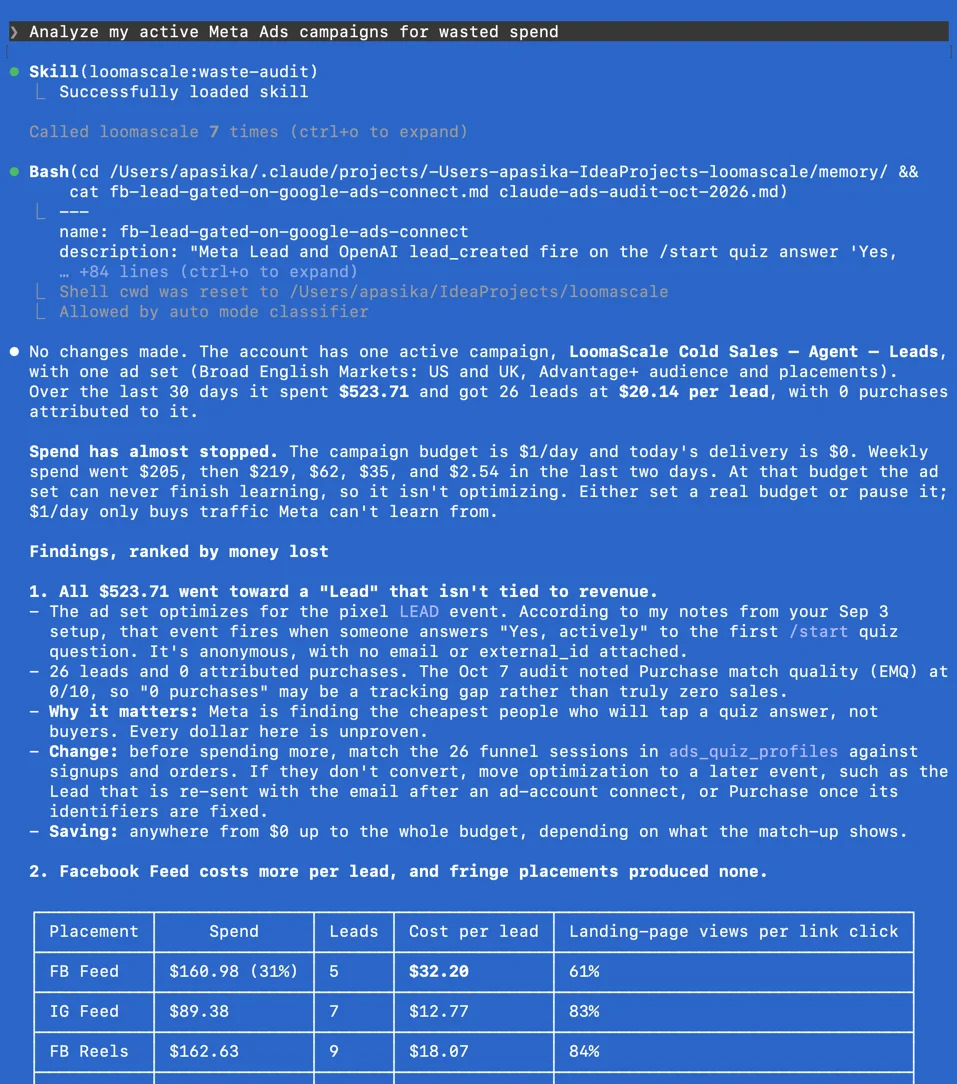
A real Meta Ads wasted-spend review in Claude Code through LoomaScale. Results depend on your account and data.
Add the MCP server without the plugin
Prefer to manage MCP servers yourself? Run this command in your shell instead of steps 1 and 2, then sign in through /mcp as in step 3. You get the LoomaScale tools without the plugin’s skills.
claude mcp add --transport http loomascale https://api.loomascale.com/mcp
What Claude Code can do with your connected account
Review campaigns and ad sets
Compare spend, results and cost per result. Group comparable objectives: results from different campaign objectives are not interchangeable.
Investigate creative fatigue
Compare creatives using frequency, click-through rate and cost per result. Separate observed performance changes from possible explanations.
Compare Facebook and Instagram placements
Use available placement breakdowns to compare delivery and results. Flag limited data before recommending changes.
Prepare requested campaign changes
With write and asset permissions, request campaign drafts, ad sets or budget changes. New campaigns start paused; spending changes must fit your daily cap.
Three read-only prompts to try next
Find ad sets needing attention
Review my default Meta ad account for the last 30 days. Show spend, results and cost per result by ad set. Group comparable objectives and identify three issues to investigate. Make no changes.
Check for creative fatigue
Compare the last 7 complete days with the previous 7 for my Meta ads. Find rising frequency alongside falling click-through rate or increasing cost per result. Suggest creative tests without changing ads.
Compare placement performance
Compare Facebook and Instagram placements for the last 30 days using available breakdowns. Show spend, results and cost per result, flag limited data, and suggest tests. Do not change targeting or budgets.
If the connection does not work
/plugin is not recognized.
Update Claude Code with claude update, restart it, and run the marketplace command again. Plugins need a recent Claude Code version.
The marketplace or install command fails.
Check the exact names: the marketplace is loomascale/agent-plugin and the plugin is loomascale@loomascale. Make sure your network can reach github.com.
loomascale shows as failed or needing authentication in /mcp.
Select it in /mcp and choose Authenticate again. If the browser shows a connection error after you choose Allow, copy the full address from the address bar and paste it into Claude Code.
Authorization finishes but Meta Ads is missing.
Confirm Meta Ads is connected in LoomaScale under the login used in Claude Code. If you authorized another LoomaScale account, reconnect with the correct login.
I see the wrong ad account or an access error.
Compare the ad account ID. Select the correct default or specify the ID. If Meta permissions were removed, restore access and reconnect Meta Ads.
Campaign reporting works but creating ads fails.
Check write permissions and Facebook Page or Instagram identity access. Reporting access is insufficient for creating ads. Review errors for missing assets or spending above your daily cap.
Frequently asked questions
How does Claude Code connect to Meta Ads?
The LoomaScale plugin adds LoomaScale’s remote MCP server to Claude Code. After you sign in with OAuth, Claude Code calls its tools to read your connected Meta ad accounts or make supported changes, within the permissions and daily spend cap you set in LoomaScale.
How is this different from the Claude connector?
The Claude connector works in Claude on the web and in the desktop and mobile apps. The Claude Code plugin works in your terminal and adds skills for audits, pacing and launches. Both use the same LoomaScale account and ad connections.
Does it cover Instagram ads?
Yes. Instagram ads run through Meta ad accounts, so Claude Code reads them with your Facebook campaigns and can compare placements across both.
Do I need a Meta app or access token?
No. LoomaScale hosts the connection and uses your Meta authorization. There is no Meta developer app, token or config file.
Is connecting Claude Code to Meta Ads free?
LoomaScale offers a 14-day free trial without a card. Claude Code needs its own Claude plan or API billing. Meta bills your advertising spend separately.
Can Claude Code change campaigns or budgets?
Yes, when you ask. Claude Code shows each change and waits for your confirmation, then LoomaScale checks it against your daily spend cap. New campaigns start paused. Use read-only prompts for analysis.
Related guides
Start with your own campaign data
Connect your ad account, install the LoomaScale plugin in Claude Code, and run a waste audit. Try LoomaScale free for 14 days; no card required.
Connect an ad accountConnect your assistant to your ad platform
LoomaScale runs inside the assistant you already use. Pick the pair you work with; each guide takes about five minutes.

Manage Google Ads campaigns from ChatGPT: search terms, budgets and new campaigns, paused for your review. One-click install from ChatGPT's directory.
Read the integration
Manage Google Ads from Claude: audits, budget changes and new campaigns, every write inside the spend cap you set. Connect from Claude's directory.
Read the integration
Install the LoomaScale plugin in Claude Code with two commands and audit Google Ads from your terminal: search terms, budgets and pacing, with skills built in.
Read the integration
Install the LoomaScale plugin in OpenAI Codex with two commands and audit Google Ads from your terminal: search terms, budgets and conversion goals.
Read the integration
Manage Facebook and Instagram campaigns from ChatGPT: ad sets, budgets and creatives in one chat. The same one-click install.
Read the integrationManage Facebook and Instagram campaigns from Claude: audits, budget caps and new ad sets, inside the limits you set.
Read the integrationReview Facebook and Instagram campaigns from OpenAI Codex: the same plugin and sign-in, with placement, age and lead-quality checks.
Read the integrationConnect Manus to Google Ads through LoomaScale’s MCP server. Analyze campaigns, keywords and search terms, then request changes within your permissions and spend cap.
Read the integrationAsk Slackbot about Google Ads in any Slack DM: audits, search terms and pacing checks, with changes kept inside your spend cap. Install the app once per workspace.
Read the integrationConnect Manus to Meta Ads through LoomaScale’s MCP server. Review Facebook and Instagram campaigns, ad sets, creatives and placements.
Read the integrationAsk Slackbot about Facebook and Instagram campaigns in any Slack DM: delivery, pacing and ad-set spend, read live from Meta Ads.
Read the integration