Connect Manus AI to Meta Ads with LoomaScale
Connect Manus AI to Meta Ads through LoomaScale’s custom MCP connector and OAuth authorization. Analyze live Facebook and Instagram campaigns, ad sets and creatives, and request supported changes within your permissions. Save the required project instructions below before starting chats.
Updated
Connection overview
- Connect Meta Ads in LoomaScale and select your default ad account.
- Open Plugins → Create → Add MCP by URL and enter the LoomaScale server details.
- Choose Save and Publish → Publish to Projects, then create or choose your project.
- Required: save the full project instructions before publishing LoomaScale to that project.
- Confirm the project publication, choose Connect, and authorize your LoomaScale account.
- Select the project in a new task, verify the Meta ad account with a read-only prompt, then review an analysis.
Required before you start a chat Save these instructions in your Manus Project before starting a chat. Adding the connector alone does not ensure Manus invokes LoomaScale: it may otherwise choose its native Google Ads or Meta Ads connectors. Enable LoomaScale for the project and keep your ad-related chats inside that project.
What you need before you start
- A Manus account with custom MCP access. Check current plan eligibility in Manus.
- A LoomaScale account with Meta Ads connected and a daily spend cap configured.
- Access to the Meta ad account. Creating ads also requires access to the relevant Facebook Page and any Instagram identity you use.
First, connect your Meta ad account in LoomaScale
Open Connections in LoomaScale, connect Meta Ads, and authorize your Meta login. Select the correct default ad account and set its daily spend cap. Note the ad account ID. Facebook and Instagram ads both run through Meta ad accounts.
Open LoomaScale connectionsConnect Manus, step by step
Open Plugins in Manus
Open the Manus sidebar and choose Plugins. This is where you add the LoomaScale connector.
Open Manus connectors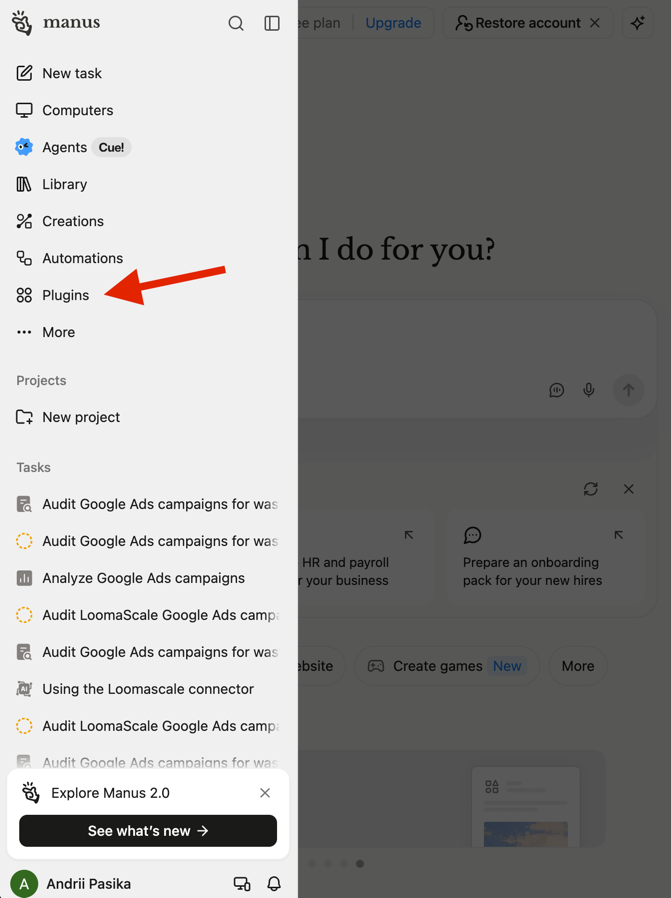
Open Plugins from the Manus sidebar. Choose Add MCP by URL
On the Plugins page, open Create and choose Add MCP by URL. If LoomaScale is already connected, use its existing connector: confirm it is published to your chosen project and complete the required instructions in step 6 before starting a chat.
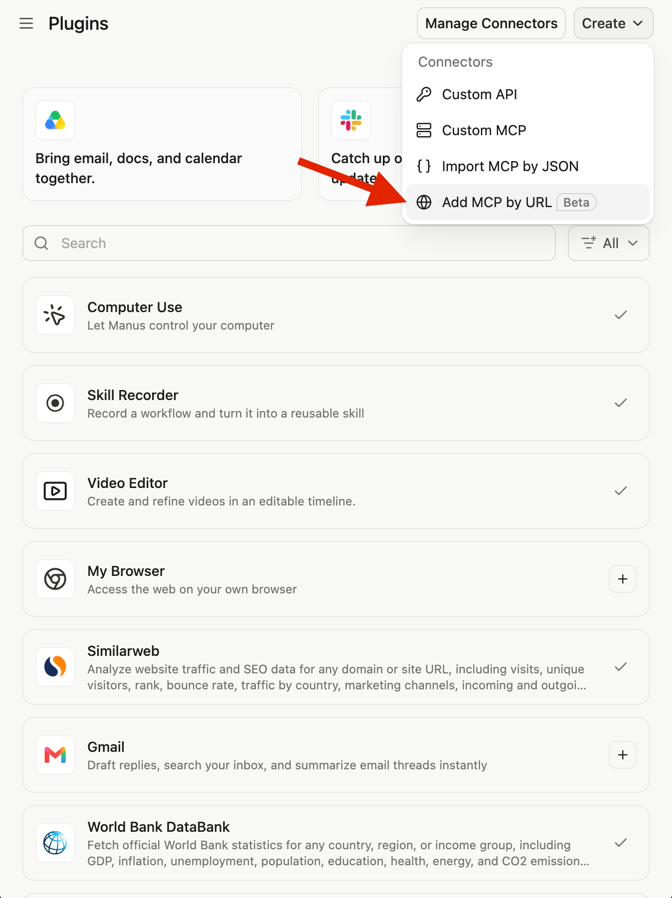
Choose Create, then Add MCP by URL. Enter LoomaScale and publish to a project
Enter LoomaScale in Server name and paste the Server URL below. Keep advanced settings at their defaults. Open the Save and Publish menu and choose Publish to Projects to make the connector available in your project.
Server name in Manus
LoomaScale
Server URL in Manus
https://api.loomascale.com/mcp
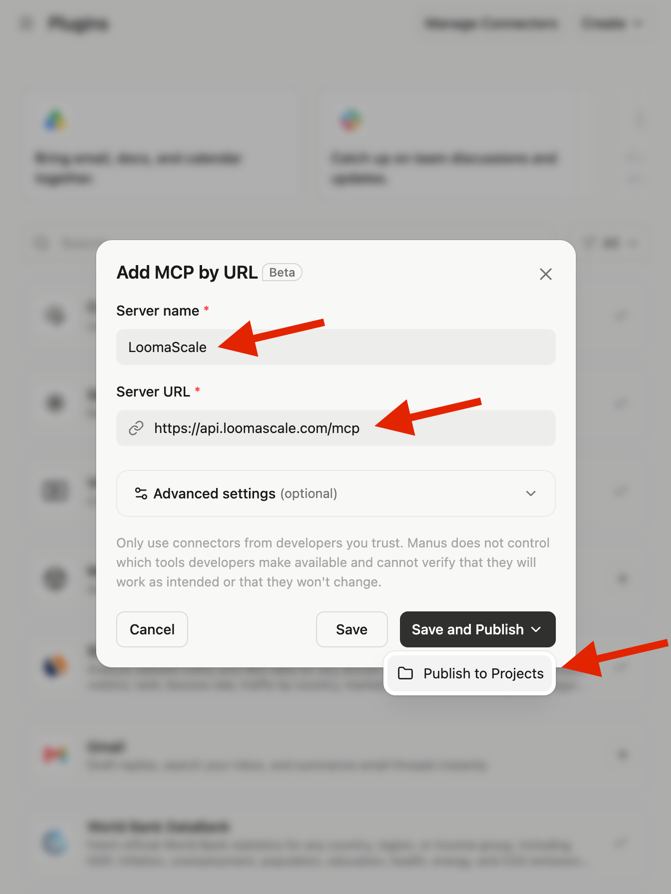
Enter the server details, then choose Save and Publish → Publish to Projects. Create or choose your Manus project
In Publish to Projects, choose Create new if you do not have a project yet. If you already have one, use that project and make sure you save the required instructions from step 6 before continuing.
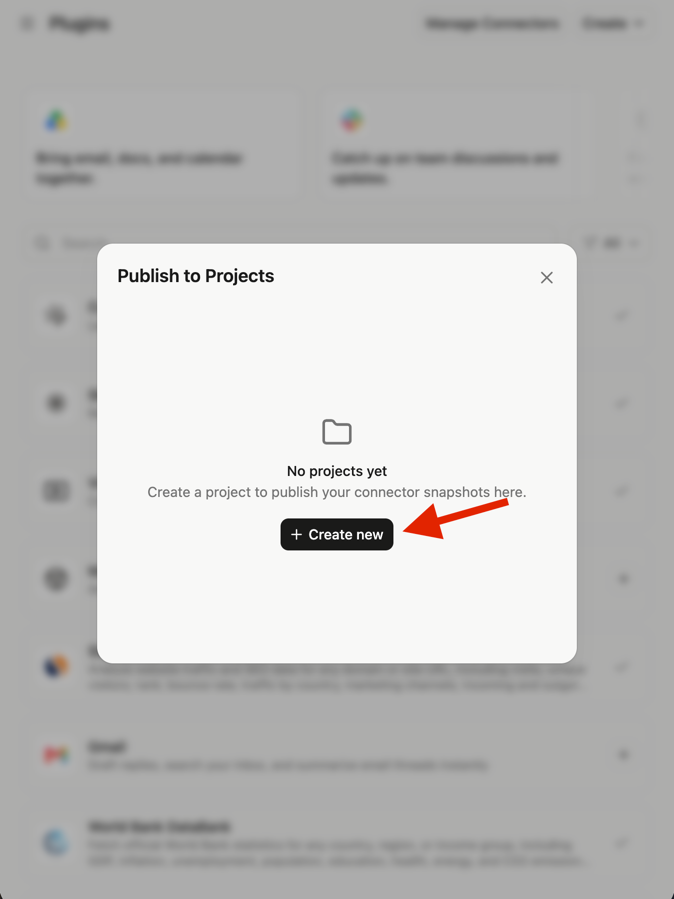
Choose Create new, or use an existing project with the required instructions. Name your new project
If you are creating a new project, enter LoomaScale in Project name and choose Create. If you chose an existing project, keep its name and continue to the required instructions in step 6. Use the same project for your ad-related chats.
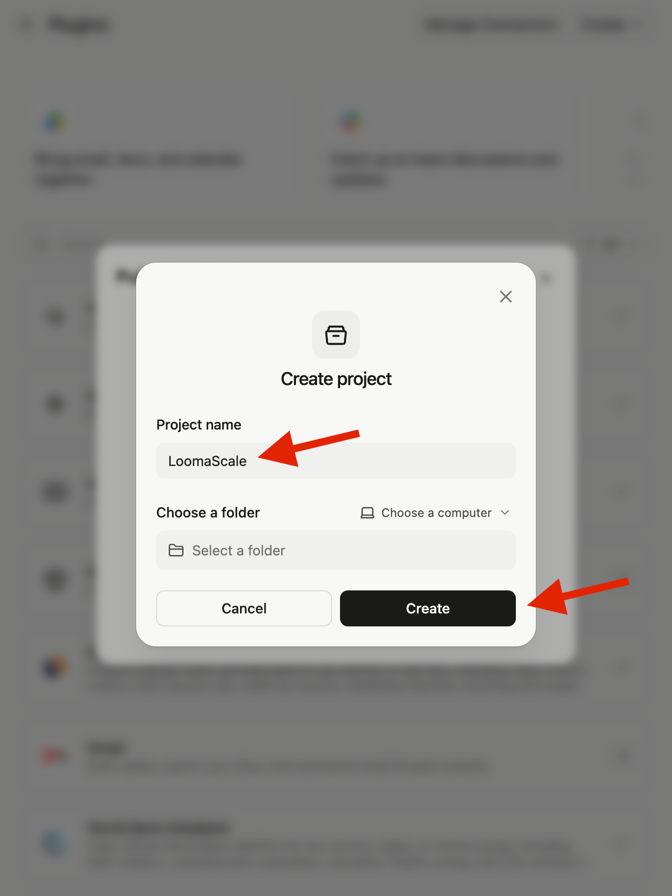
Name the project LoomaScale and choose Create. Required: save the project instructions
In the Project created dialog, paste the entire instruction block below into Instructions and choose Get started. For an existing project, open its instructions, paste the same block, and save. Do not skip this step: it tells Manus to use LoomaScale first and to leave advertising data unchanged unless you explicitly request a change.
Manus Projects documentationThis project uses LoomaScale as its primary Google Ads and Meta Ads integration. For any request involving Google Ads, Meta Ads, advertising campaigns, budgets, performance analysis, or optimization: - Use the LoomaScale MCP connector first. - Do not recommend or activate Manus's native Google Ads or Meta Ads connectors when LoomaScale can fulfill the request. - Verify LoomaScale availability before requesting another connection. - Never modify advertising data unless explicitly requested.
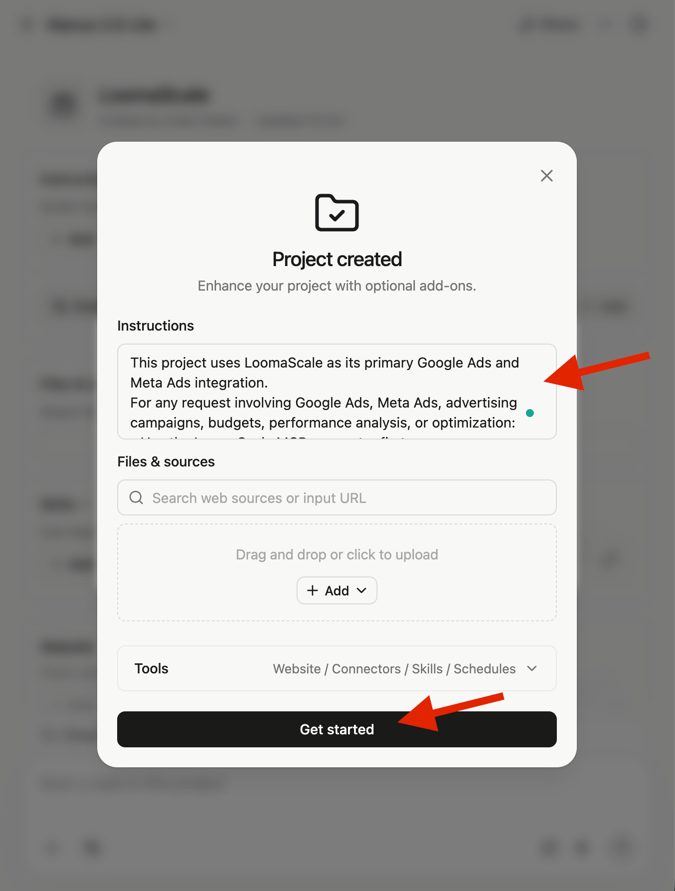
Paste all the required instructions into Instructions, then choose Get started. Confirm the project publication
In Publish to Projects, select your project (LoomaScale in the example) and choose Confirm. Check that it is the same project where you saved the instructions. Publishing the connector to the project does not replace account authorization in the next step.
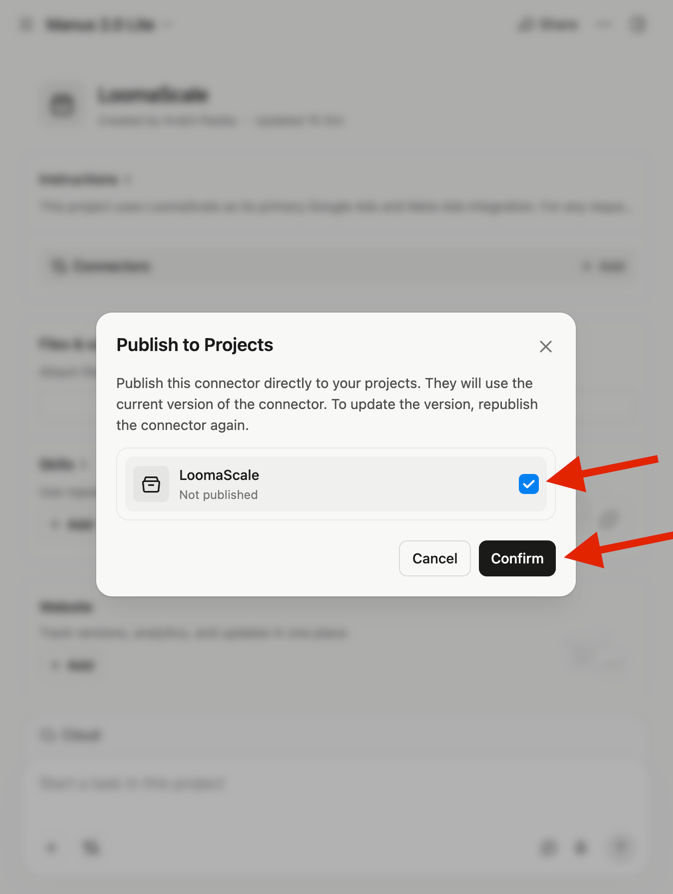
Select the project where you saved the instructions (LoomaScale in the example), then choose Confirm. Connect and authorize LoomaScale
Open the LoomaScale connector details and choose Connect. Complete OAuth authorization with the same LoomaScale account where you connected Meta Ads, then return to Manus. Ad-account access does not automatically grant access to every Facebook Page or Instagram identity.
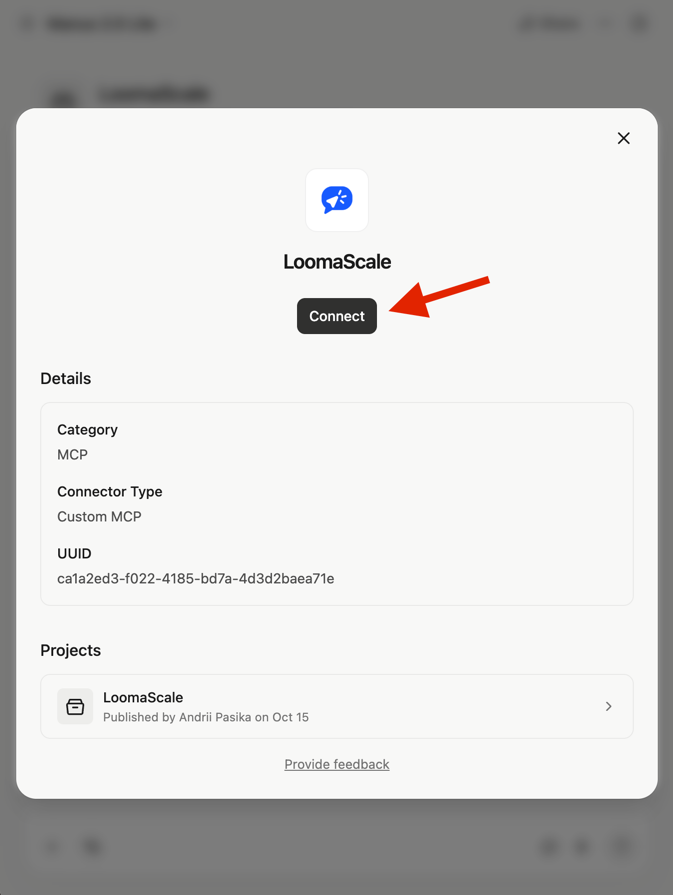
Choose Connect and authorize the LoomaScale account that holds your Meta Ads connection. Select the project and check your Meta ad account
Start a new task and select your project in the composer (LoomaScale in the example). Send the read-only test prompt below, confirm Manus uses LoomaScale, and verify the ad account name, ID, currency and campaigns. The screenshot shows a later analysis prompt; complete the account check before asking for an audit.
Use LoomaScale to show my default Meta ad account name, account ID and currency, then list its campaigns and statuses. Read only: do not create or change anything.
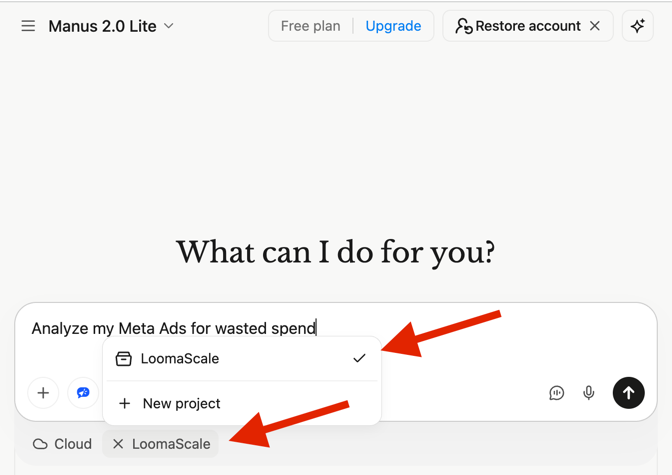
Select your project (LoomaScale in the example) and run the read-only account check before trying an analysis like the one shown. Review your Meta Ads analysis
Once the account check succeeds, try a read-only analysis prompt from this guide. This example review found 27 leads and no tracked purchases in one account, while another account had no data for the selected period. Verify the account, date range, currency and tracking before acting. These are example findings, not expected results for your account.
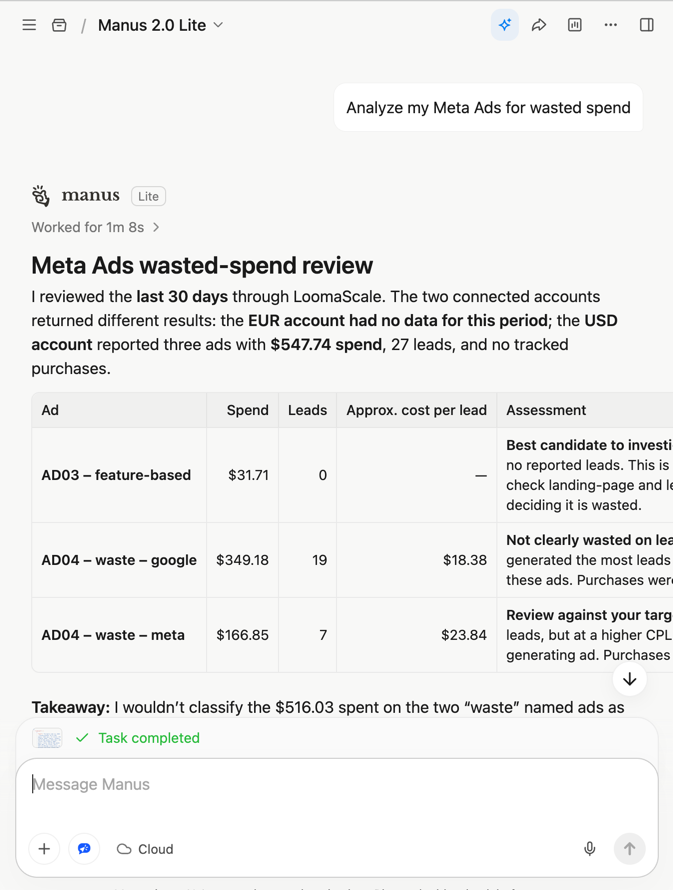
Example Meta Ads review through LoomaScale. No tracked purchases and no account data are different findings; verify tracking and dates.
What Manus can do with your connected account
Review campaigns and ad sets
Compare spend, results and cost per result. Group comparable objectives: results from different campaign objectives are not interchangeable.
Investigate creative fatigue
Compare creatives using frequency, click-through rate and cost per result. Separate observed performance changes from possible explanations.
Compare Facebook and Instagram placements
Use available placement breakdowns to compare delivery and results. Flag limited data before recommending changes.
Prepare requested campaign changes
With write and asset permissions, request campaign drafts, ad sets or budget changes. New campaigns start paused; spending changes must fit your daily cap.
Three read-only prompts to try next
Find ad sets needing attention
Review my default Meta ad account for the last 30 days. Show spend, results and cost per result by ad set. Group comparable objectives and identify three issues to investigate. Make no changes.
Check for creative fatigue
Compare the last 7 complete days with the previous 7 for my Meta ads. Find rising frequency alongside falling click-through rate or increasing cost per result. Suggest creative tests without changing ads.
Compare placement performance
Compare Facebook and Instagram placements for the last 30 days using available breakdowns. Show spend, results and cost per result, flag limited data, and suggest tests. Do not change targeting or budgets.
If the connection does not work
Manus uses a native ads connector or does not invoke LoomaScale.
Save the full instruction block from step 6 in your Manus Project, enable LoomaScale for that project, and start a new task inside it. Ask Manus to verify LoomaScale availability and use it first. If it is unavailable, check the existing connector and authorization before adding another connection.
I cannot add the MCP connector in Manus.
Check Create, then Add MCP by URL on the Manus connectors page. Verify custom-connector access for your Manus plan or workspace.
Authorization finishes but Meta Ads is missing.
Confirm Meta Ads is connected in LoomaScale under the login used in Manus. If you authorized another LoomaScale account, reconnect with the correct login.
I see the wrong ad account or an access error.
Compare the ad account ID. Select the correct default or specify the ID. If Meta permissions were removed, restore access and reconnect Meta Ads.
Campaign reporting works but creating ads fails.
Check write permissions and Facebook Page or Instagram identity access. Reporting access is insufficient for creating ads. Review errors for missing assets or spending above your daily cap.
Frequently asked questions
Can Manus connect to Facebook and Instagram ads?
Yes. Connect your Meta ad account in LoomaScale, authorize the connector in Manus, and save the required project instructions in step 6. Use chats inside that project with LoomaScale enabled. Both platforms use Meta Ads; no separate MCP server is needed for Instagram.
Why are the Manus project instructions required?
Adding a connector makes it available, but does not ensure Manus chooses it for ad requests. Save the instructions from step 6 in your Manus Project and enable LoomaScale there. Start your ad-related chats inside that project so new tasks receive the instruction to use LoomaScale first and make no changes unless explicitly requested.
Do I need a Meta developer app or access token?
No. Authorize Meta in LoomaScale, then authorize LoomaScale in Manus. You do not create a Meta developer app, generate tokens manually or run a server.
Is the Manus and Meta Ads connection free?
LoomaScale offers a 14-day free trial without a card. Manus sets its own pricing and custom-connector access. Meta bills advertising spend separately.
Can Manus publish ads or increase spending?
Actions depend on write and asset permissions. Manus follows your instructions within those permissions and your daily spend cap. New campaigns start paused. Start with read-only prompts for analysis.
Do I need another connector for Google Ads?
No. Connect Google Ads to the same LoomaScale account and use the existing Manus connector in the project configured in step 6. The required project instructions cover both platforms. Name the platform and account in each task.
Connect another ad platform
Start with your own campaign data
Connect your ad account, add LoomaScale to Manus, save the required project instructions, and run an account check. Try LoomaScale free for 14 days; no card required.
Connect an ad accountConnect your assistant to your ad platform
LoomaScale runs inside the assistant you already use. Pick the pair you work with; each guide takes about five minutes.

Manage Google Ads campaigns from ChatGPT: search terms, budgets and new campaigns, paused for your review. One-click install from ChatGPT's directory.
Read the integration
Manage Google Ads from Claude: audits, budget changes and new campaigns, every write inside the spend cap you set. Connect from Claude's directory.
Read the integration
Manage Facebook and Instagram campaigns from ChatGPT: ad sets, budgets and creatives in one chat. The same one-click install.
Read the integrationManage Facebook and Instagram campaigns from Claude: audits, budget caps and new ad sets, inside the limits you set.
Read the integrationConnect Manus to Google Ads through LoomaScale’s MCP server. Analyze campaigns, keywords and search terms, then request changes within your permissions and spend cap.
Read the integration