Connect Slack to Google Ads with Slackbot and LoomaScale
Connect Slack to Google Ads by adding the LoomaScale app to your workspace and signing in once. Then ask Slackbot about your campaigns, search terms and budgets in any DM, and it answers from live Google Ads data. No code, no developer token, and no Google password shared with Slack.
Updated
Connection overview
- Connect Google Ads in LoomaScale and set your daily spend cap.
- Add the LoomaScale app to your Slack workspace.
- Ask Slackbot a question that names LoomaScale, then choose Connect.
- Confirm your Slack account and continue to LoomaScale.
- Sign in to LoomaScale and approve the connection.
- Ask a read-only test question, then run your first Google Ads audit.
What you need before you start
- A Slack workspace where Slackbot's AI chat is available. Slack marks it Preview at the time of writing.
- Permission to install apps in that workspace, or a Slack admin who approves LoomaScale.
- A LoomaScale account with Google Ads connected and a daily spend cap configured.
- Google Ads customer-account access, directly or through a manager account (MCC).
Connect Google Ads in LoomaScale first
Slackbot reaches Google Ads through your LoomaScale account, so connect Google Ads there before you start. If you skip this, Slackbot connects but has no account to read.
Open LoomaScale connectionsConnect Slack, step by step
Add LoomaScale to your Slack workspace
Choose Add LoomaScale to Slack below. Slack shows the workspace the app will join and what it can do; approve it. One install covers the whole workspace: each teammate still signs in with their own LoomaScale account in the next steps.
Add LoomaScale to SlackAsk Slackbot and choose Connect
Open Slackbot and ask something that names LoomaScale, such as "What tools are available from LoomaScale?" The first time, Slackbot answers with a card that says Connect your LoomaScale account to continue. Choose Connect.
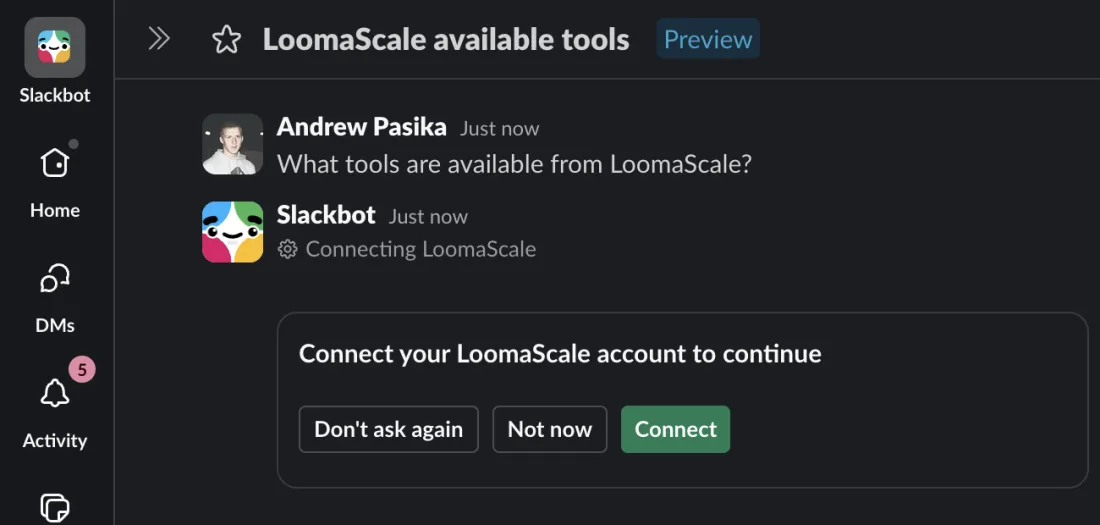
The first LoomaScale question shows a Connect card. Choose Connect. Confirm your Slack account
Slack opens a page that shows which Slack account and workspace you are connecting. Check that it is the right one, then choose Continue to LoomaScale.
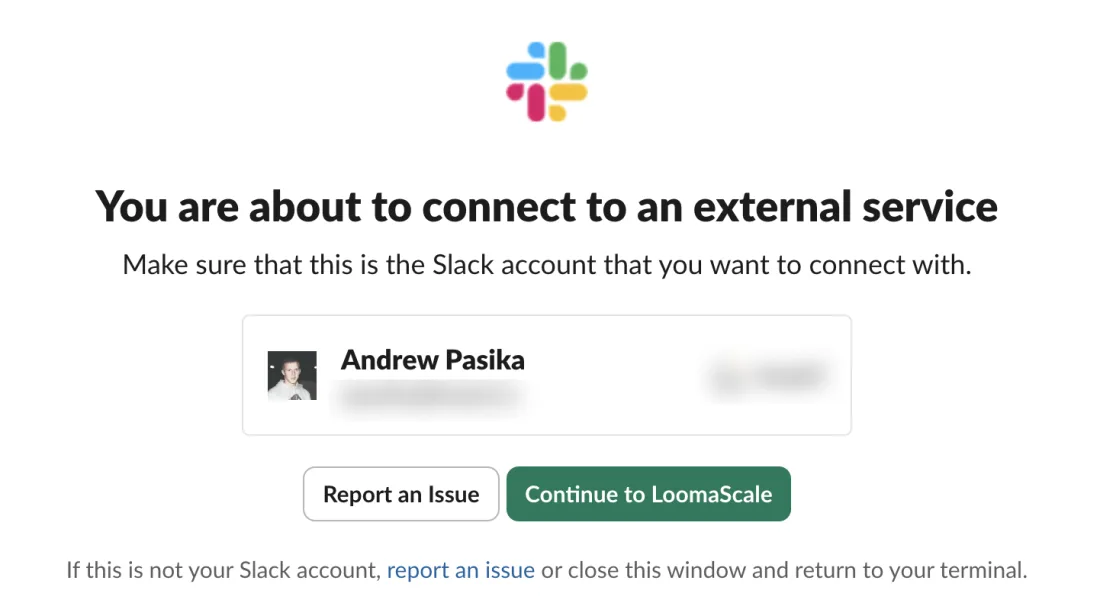
Confirm the Slack account, then choose Continue to LoomaScale. The workspace and email are blurred. Sign in to LoomaScale and approve
Sign in with the same LoomaScale account where you connected Google Ads, then approve the connection. Slack never sees your Google password: LoomaScale holds the Google Ads authorization, and Slackbot only calls LoomaScale.
Check the connection with a read-only question
Back in Slackbot, the reply starts with LoomaScale connected and lists the tools it found. Send the test prompt below and check the customer ID, currency and campaigns before you ask for anything else.
Use LoomaScale to show my default Google Ads customer account name, customer ID and currency, then list its campaigns and statuses. Read only: do not create or change anything.
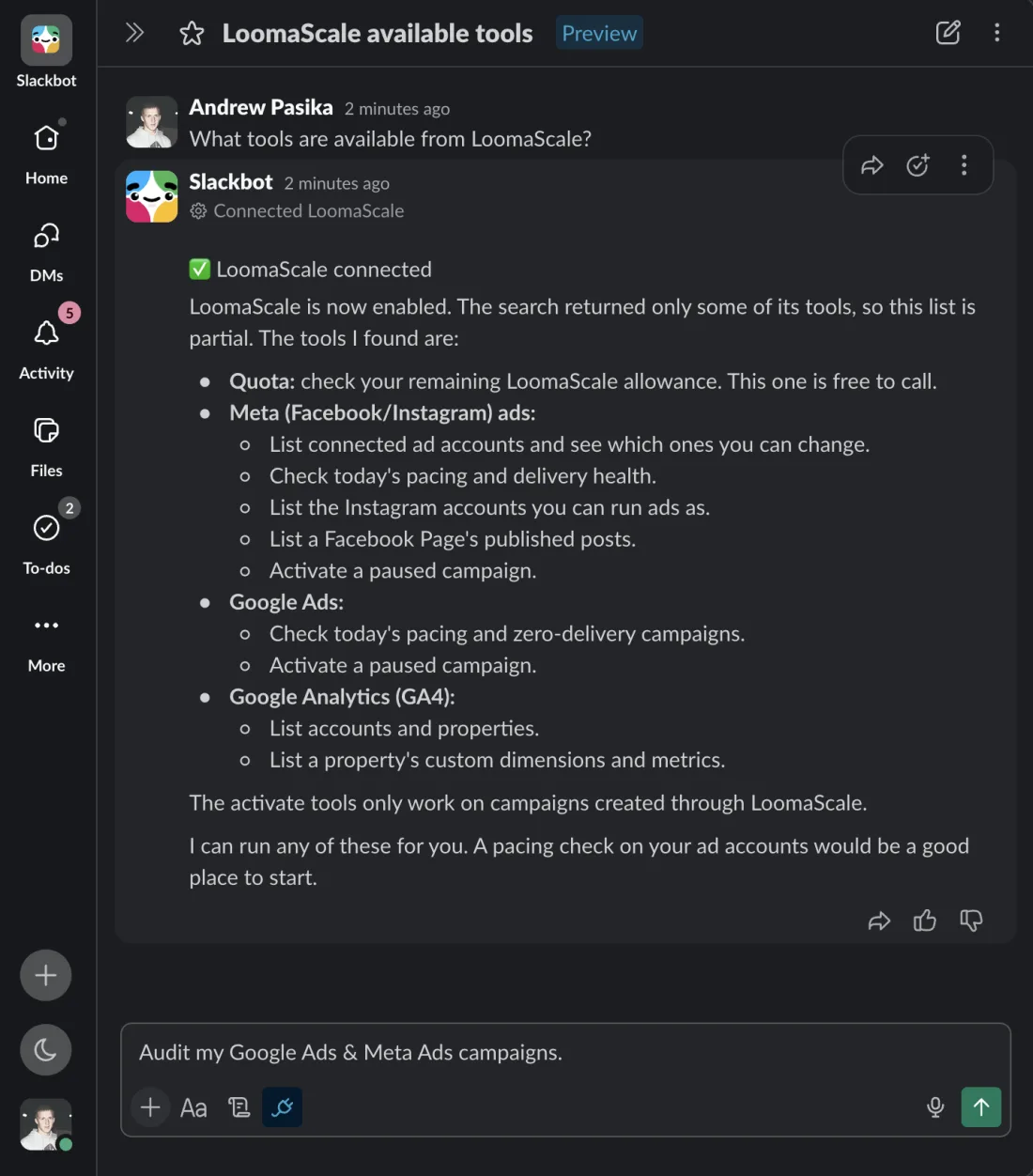
Slackbot confirms that LoomaScale is connected and lists the tools it found. Run your first Google Ads audit
Ask Slackbot to audit your account. The screenshot shows a real audit of the last 30 days: conversion tracking that recorded nothing, a campaign spending without conversions, wasted search terms and a disapproved ad. Check the customer account, dates and conversion tracking before you act on the findings.
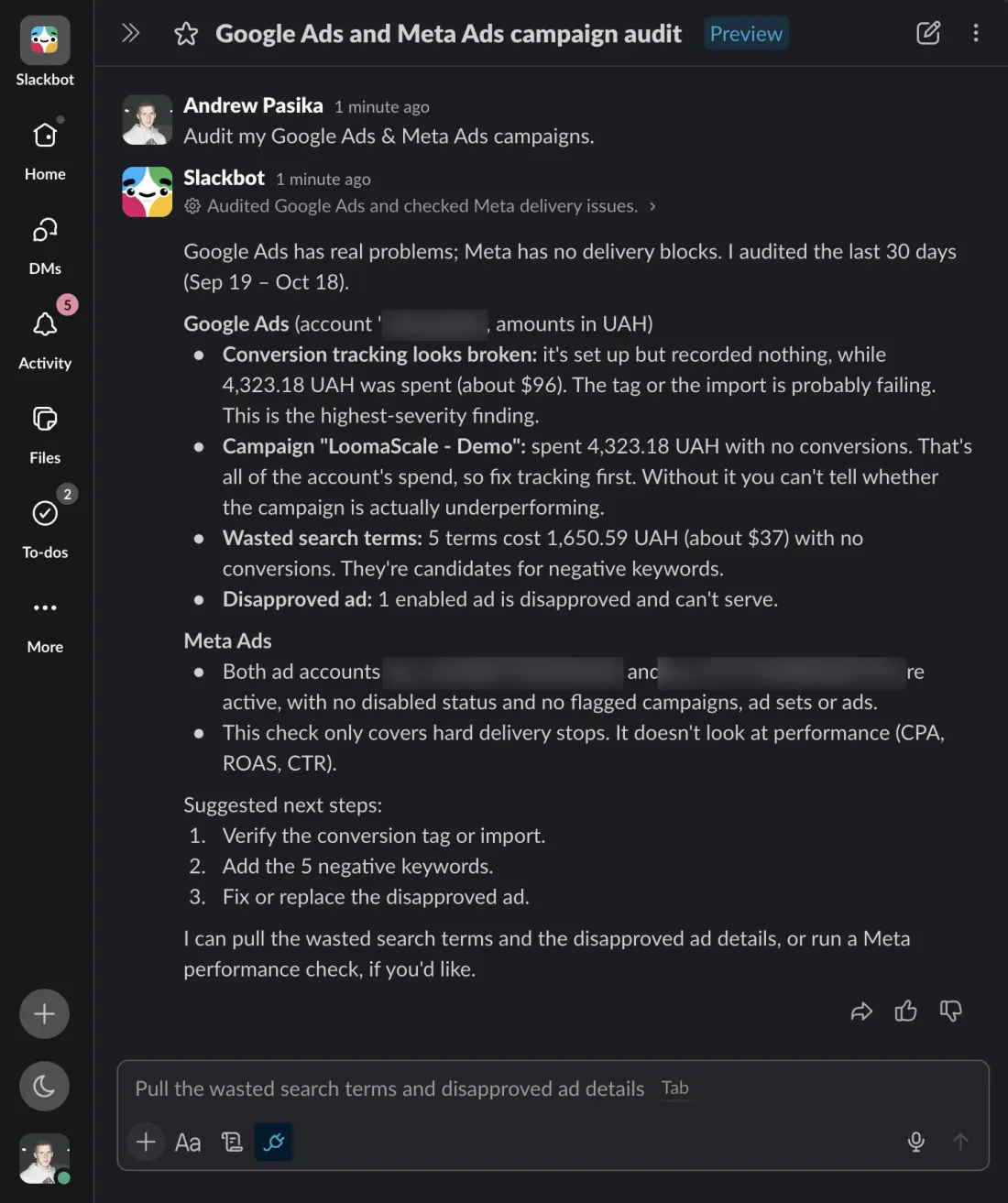
Example audit through Slackbot. Account names and IDs are blurred; results depend on your account and date range.
What Slackbot can do with your connected account
Review campaign performance
Ask for spend, conversions and cost per conversion by campaign, for any date range, without leaving Slack.
Investigate keywords and search terms
Find search terms that spent without converting and get negative-keyword suggestions with match types.
Check pacing every morning
Ask whether any campaign is overspending or not delivering today. Slackbot runs the pacing check and flags zero-delivery campaigns.
Make the changes you ask for
Request a budget change or a campaign draft. New campaigns start paused, and every change that moves money stays under your daily cap.
Three read-only prompts to try next
Find spend without conversions
Analyze my default Google Ads account for the last 30 days. Rank campaigns by spend with zero conversions, show the numbers, and recommend what to investigate. Do not change anything.
Review search term quality
Review search terms for the last 30 days. Group irrelevant queries by intent and propose negative keywords with match types. Explain your reasoning; do not apply them.
Explain a performance change
Compare the last 7 complete days with the previous 7. Show spend, conversions and cost per conversion by campaign in my default Google Ads account. Explain the largest changes. Read only.
If the connection does not work
Slackbot answers without using LoomaScale.
Name LoomaScale in the question, or select LoomaScale next to "Slackbot can also search" above the message box. Slackbot picks tools by searching, so a question that never mentions ads or LoomaScale may not reach them.
Slackbot lists only some LoomaScale tools.
That is expected. Slackbot searches for the tools that fit each question, so a general question returns a partial list. Ask for the task you want, such as a pacing check, and it finds the tools for that task.
Slackbot connects but finds no Google Ads account.
Open LoomaScale connections and check that Google Ads is connected and the account is ticked for assistants. Then ask Slackbot again; you do not need to reinstall the app.
The Slack install page says I need approval.
Your workspace restricts app installs. Send the request to a Slack admin from that page; once they approve LoomaScale, continue from step 2.
Frequently asked questions
Is connecting Slack free?
Adding the app costs nothing. Slackbot works under the same LoomaScale plan as ChatGPT or Claude, and new accounts get a 14-day free trial with no card required.
Can my teammates use LoomaScale in Slack too?
Yes. The app is installed once per workspace, and each teammate connects their own LoomaScale account the first time they ask Slackbot. Each person reaches only the ad accounts their own login can reach.
Can Slackbot change my Google Ads campaigns?
Only when you ask it to. New campaigns start paused, and any change that moves money is refused above the daily cap you set in LoomaScale.
Does Slack get a copy of my Google Ads data?
LoomaScale reads Google Ads live for each question and keeps no copies of your reports. Slackbot's replies are Slack messages, so they follow your workspace's own retention settings.
How do I disconnect LoomaScale from Slack?
Remove the LoomaScale app in Slack's app management. That stops Slackbot from reaching LoomaScale for the whole workspace; your LoomaScale account and ad connections stay as they are.
Connect another ad platform
Start with your own campaign data
Connect your ad account, add LoomaScale to Slack, and ask Slackbot for an account check. Try LoomaScale free for 14 days; no card required.
Connect an ad accountConnect your assistant to your ad platform
LoomaScale runs inside the assistant you already use. Pick the pair you work with; each guide takes about five minutes.

Manage Google Ads campaigns from ChatGPT: search terms, budgets and new campaigns, paused for your review. One-click install from ChatGPT's directory.
Read the integration
Manage Google Ads from Claude: audits, budget changes and new campaigns, every write inside the spend cap you set. Connect from Claude's directory.
Read the integration
Manage Facebook and Instagram campaigns from ChatGPT: ad sets, budgets and creatives in one chat. The same one-click install.
Read the integrationManage Facebook and Instagram campaigns from Claude: audits, budget caps and new ad sets, inside the limits you set.
Read the integrationConnect Manus to Google Ads through LoomaScale’s MCP server. Analyze campaigns, keywords and search terms, then request changes within your permissions and spend cap.
Read the integrationConnect Manus to Meta Ads through LoomaScale’s MCP server. Review Facebook and Instagram campaigns, ad sets, creatives and placements.
Read the integrationAsk Slackbot about Facebook and Instagram campaigns in any Slack DM: delivery, pacing and ad-set spend, read live from Meta Ads.
Read the integration