Connect Codex to Google Ads with LoomaScale
Connect OpenAI Codex to Google Ads by installing the LoomaScale plugin with two terminal commands and signing in once in your browser. Codex can then audit campaigns, keywords and search terms, and make the changes you ask for inside your spend cap. No Google Ads developer token, API key or config file is needed.
Updated
Connection overview
- Connect Google Ads in LoomaScale and set a daily spend cap.
- In your terminal, run codex plugin marketplace add loomascale/agent-plugin.
- Run codex plugin add loomascale@loomascale.
- Run codex mcp login loomascale and sign in to LoomaScale in your browser.
- Start Codex, check the account with a read-only prompt, then run a waste audit.
What you need before you start
- The Codex CLI with plugin support. If codex plugin is not recognized, update Codex first.
- A LoomaScale account with Google Ads connected and a daily spend cap configured.
- Google Ads customer-account access, directly or through a manager account (MCC).
First, connect your Google Ads customer account in LoomaScale
Open Connections in LoomaScale, connect Google Ads, and authorize your Google login. Select the default customer account and set its daily spend cap. With an MCC, choose a client account: manager accounts do not hold campaigns. Note the customer ID.
Open LoomaScale connectionsConnect Codex, step by step
Add the LoomaScale plugin marketplace
In your terminal, run the command below. It registers LoomaScale’s public plugin repository on GitHub as a Codex marketplace, so Codex can find the plugin. Nothing is installed yet.
codex plugin marketplace add loomascale/agent-plugin
Install the plugin
Run the install command. Codex adds the LoomaScale MCP server and its skills for waste audits, performance reviews, budget pacing, campaign launches, conversion tracking audits and scheduled checks. Start a new Codex session afterwards so it loads them.
codex plugin add loomascale@loomascale
Sign in to LoomaScale
Run the login command. Your browser opens LoomaScale’s consent screen: sign in with the account that holds your Google Ads connection and choose Allow. The screen names localhost as the destination because Codex receives the sign-in on your own computer. The terminal confirms when you are logged in. You never paste a password or API key into Codex.
codex mcp login loomascale
Check your Google Ads account
Start Codex and send the read-only test prompt below. Codex calls LoomaScale and returns your customer IDs, currencies and campaigns. With more than one account, name the one you mean in each request.
Use LoomaScale to list my Google Ads customer accounts with their IDs and currencies, then list the campaigns and statuses in my default account. Read only: do not change anything.
Run a waste audit
Ask for a waste audit. Codex reads spend, keywords and search terms through LoomaScale and ranks findings by money lost, including what you have already fixed. It changes nothing unless you ask. Verify the account, dates, currency and conversion tracking before acting on the findings.
Analyze my active Google Ads campaigns for wasted spend
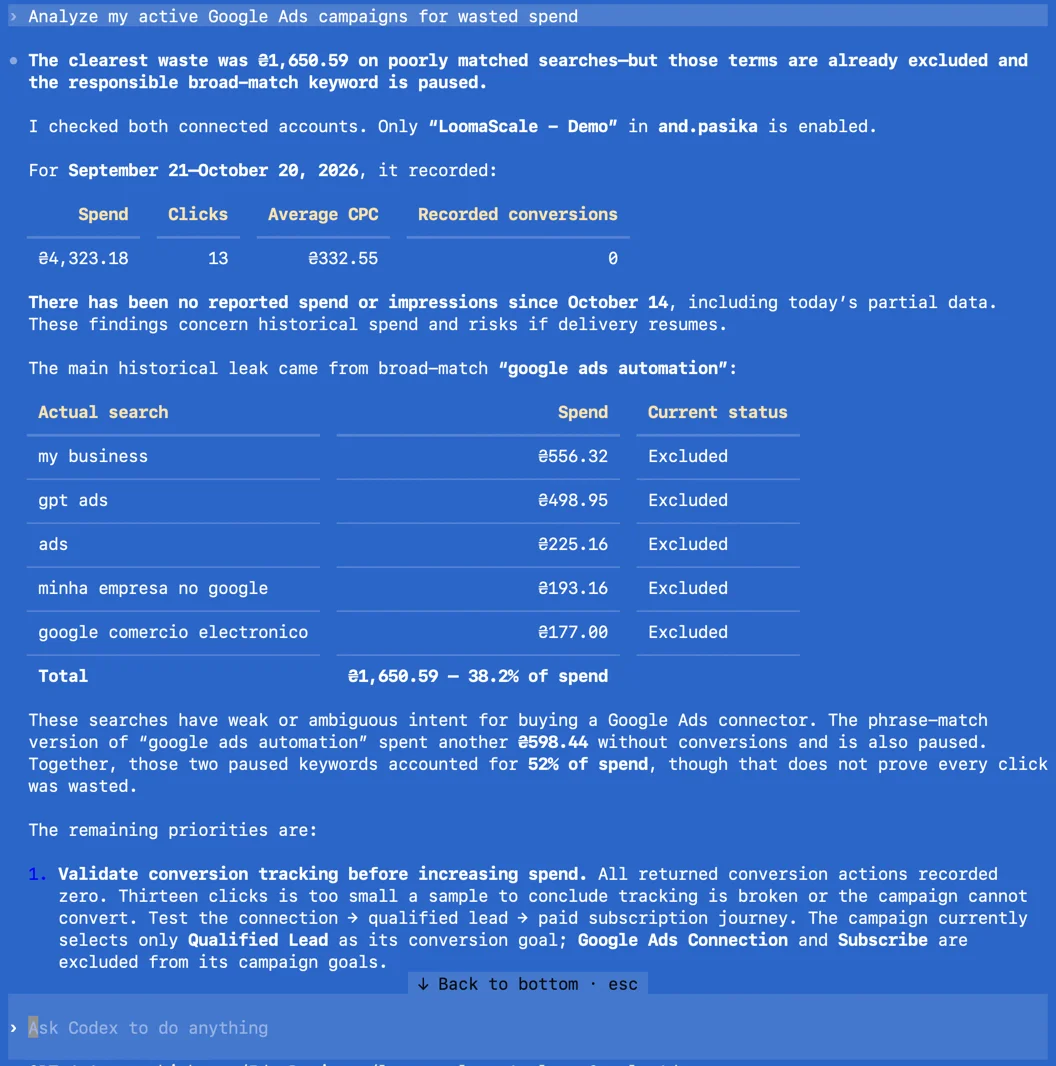
A real Google Ads waste audit in Codex through LoomaScale. Results depend on your account and data.
Add the MCP server without the plugin
Prefer to manage MCP servers yourself? Run this command instead of steps 1 and 2, then sign in with codex mcp login loomascale as in step 3. You get the LoomaScale tools without the plugin’s skills.
codex mcp add loomascale --url https://api.loomascale.com/mcp
What Codex can do with your connected account
Review campaign performance
Compare campaign spend, conversions and cost per conversion. Specify the customer account and date range for a focused report.
Investigate keywords and search terms
Find queries that spent without converting and propose negative keywords. Separate bid keywords from the searches that triggered ads.
Work across MCC client accounts
Analyze connected client accounts under a Google Ads manager account. Identify the customer account in each request.
Prepare and apply requested changes
With write permissions, request campaign drafts or budget adjustments. New campaigns start paused; spending changes must fit your daily cap.
Three read-only prompts to try next
Find spend without conversions
Analyze my default Google Ads account for the last 30 days. Rank campaigns by spend with zero conversions, show the numbers, and recommend what to investigate. Do not change anything.
Review search term quality
Review search terms for the last 30 days. Group irrelevant queries by intent and propose negative keywords with match types. Explain your reasoning; do not apply them.
Explain a performance change
Compare the last 7 complete days with the previous 7. Show spend, conversions and cost per conversion by campaign in my default Google Ads account. Explain the largest changes. Read only.
If the connection does not work
codex plugin is not recognized.
Update the Codex CLI to the latest version and run the marketplace command again. Plugin commands need a recent Codex release.
The marketplace or install command fails.
Check the exact names: the marketplace is loomascale/agent-plugin and the plugin is loomascale@loomascale. Make sure your network can reach github.com.
Codex says loomascale is not logged in.
Run codex mcp login loomascale again and finish the sign-in in your browser. Check the status with codex mcp list, then start a new Codex session.
Codex cannot find my Google Ads account.
Confirm Google Ads is connected under the LoomaScale login authorized in Codex. Check Google permissions; for MCC access, select the client account and retry with its customer ID.
The report is empty or shows the wrong client.
Compare the customer ID with your intended account. Change the default or name the account explicitly. Check the dates: the account may have no activity in that period.
Frequently asked questions
How does Codex connect to Google Ads?
The LoomaScale plugin adds LoomaScale’s remote MCP server to Codex. After you sign in with OAuth, Codex calls its tools to read your connected Google Ads accounts or make supported changes, within the permissions and daily spend cap you set in LoomaScale.
How is this different from the ChatGPT app?
The LoomaScale app works inside ChatGPT on the web and in the ChatGPT apps. The Codex plugin works in your terminal and adds skills for audits, pacing and launches. Both use the same LoomaScale account and ad connections.
Can I add the MCP server without the plugin?
Yes. Run codex mcp add loomascale --url https://api.loomascale.com/mcp, then codex mcp login loomascale. You get the tools without the plugin’s skills.
Do I need a Google Ads API token or code?
No. LoomaScale hosts the connection and uses your Google authorization. There is no developer token, self-hosted server or config file.
Is connecting Codex to Google Ads free?
LoomaScale offers a 14-day free trial without a card. Codex needs its own ChatGPT plan or OpenAI API billing. Google bills your advertising spend separately.
Can Codex change campaigns or budgets?
Yes, when you ask. Codex asks for approval before each change, then LoomaScale checks it against your daily spend cap. New campaigns start paused. Use read-only prompts for analysis.
Related guides
Start with your own campaign data
Connect your ad account, install the LoomaScale plugin in Codex, and run a waste audit. Try LoomaScale free for 14 days; no card required.
Connect an ad accountConnect your assistant to your ad platform
LoomaScale runs inside the assistant you already use. Pick the pair you work with; each guide takes about five minutes.

Manage Google Ads campaigns from ChatGPT: search terms, budgets and new campaigns, paused for your review. One-click install from ChatGPT's directory.
Read the integration
Manage Google Ads from Claude: audits, budget changes and new campaigns, every write inside the spend cap you set. Connect from Claude's directory.
Read the integration
Install the LoomaScale plugin in Claude Code with two commands and audit Google Ads from your terminal: search terms, budgets and pacing, with skills built in.
Read the integration
Manage Facebook and Instagram campaigns from ChatGPT: ad sets, budgets and creatives in one chat. The same one-click install.
Read the integrationManage Facebook and Instagram campaigns from Claude: audits, budget caps and new ad sets, inside the limits you set.
Read the integrationRun Facebook and Instagram campaign reviews from Claude Code: the same plugin, one sign-in, and skills for waste audits, pacing and creative fatigue.
Read the integration
Review Facebook and Instagram campaigns from OpenAI Codex: the same plugin and sign-in, with placement, age and lead-quality checks.
Read the integrationConnect Manus to Google Ads through LoomaScale’s MCP server. Analyze campaigns, keywords and search terms, then request changes within your permissions and spend cap.
Read the integrationAsk Slackbot about Google Ads in any Slack DM: audits, search terms and pacing checks, with changes kept inside your spend cap. Install the app once per workspace.
Read the integrationConnect Manus to Meta Ads through LoomaScale’s MCP server. Review Facebook and Instagram campaigns, ad sets, creatives and placements.
Read the integrationAsk Slackbot about Facebook and Instagram campaigns in any Slack DM: delivery, pacing and ad-set spend, read live from Meta Ads.
Read the integration