Connect Claude to Google Ads with LoomaScale
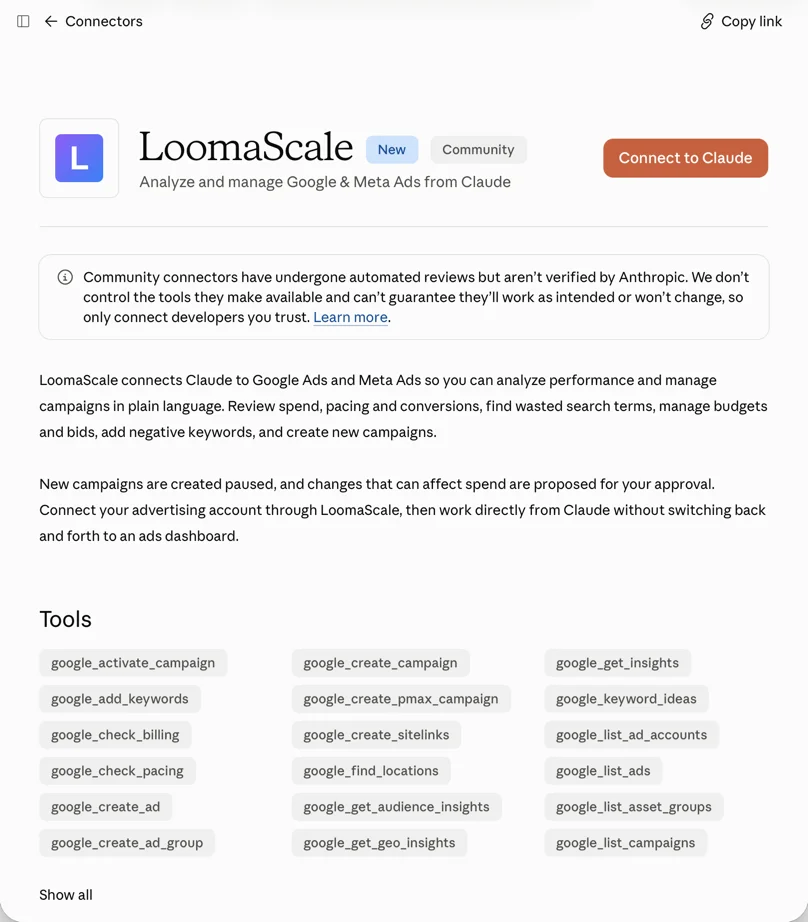
LoomaScale connects your Google Ads account directly to Claude. Add LoomaScale from Claude's connector directory, sign in, connect your Google Ads account, and Claude can analyze campaigns, find wasted spend and make changes when you ask.
- Listed in Claude's connector directory
- No code
- No API setup
- Free to try
How to connect Claude to Google Ads
- Open LoomaScale in Claude's connector directory.
- Click Connect to Claude.
- Sign in to LoomaScale, or create a free account.
- Connect your Google Ads account and approve access.
- Ask Claude to list your campaigns.
What you can do with Claude + Google Ads
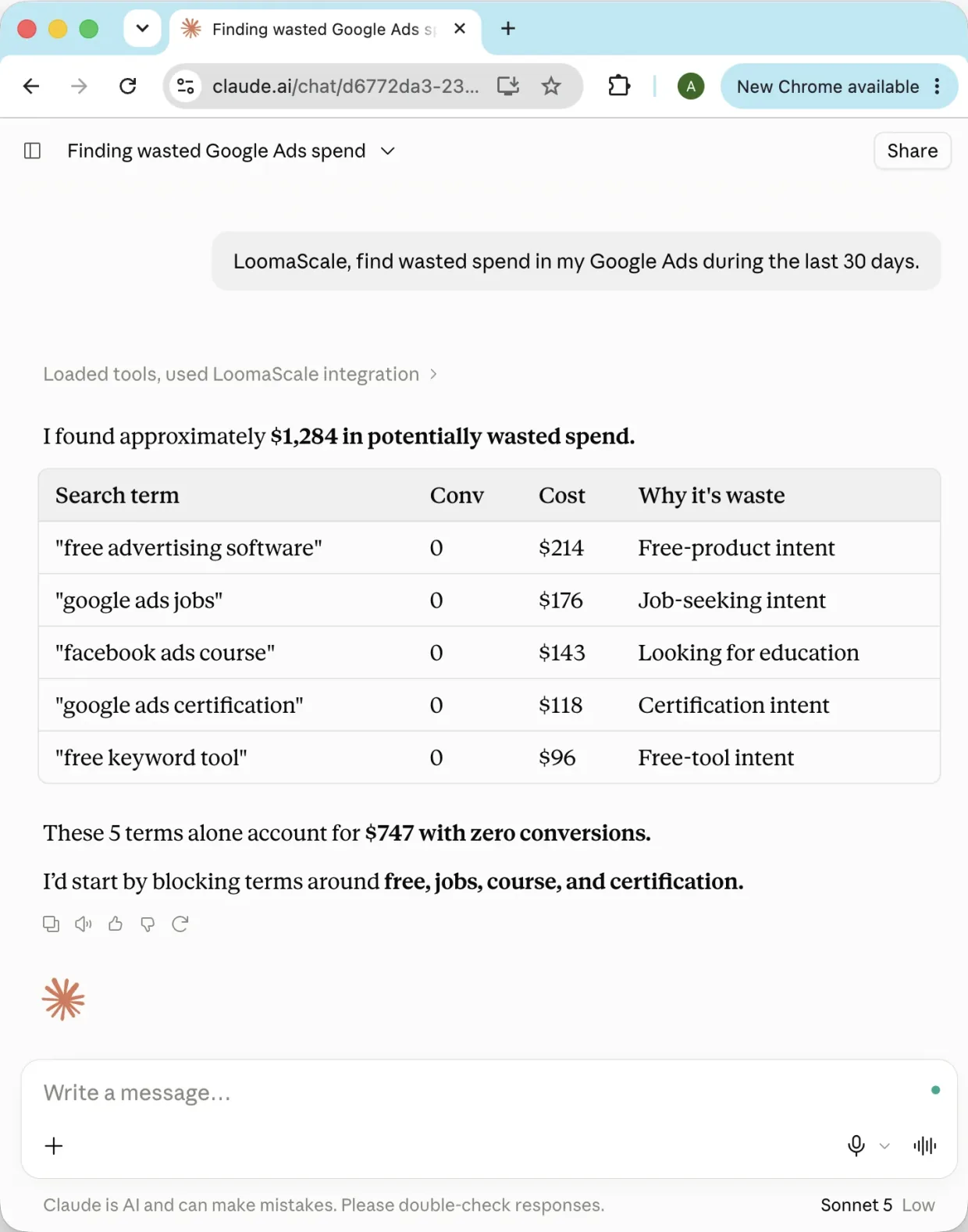
Each of these is a sentence you type into Claude. LoomaScale runs it against your live account and Claude answers with the numbers.
Audit wasted spend
“Find wasted spend in my Google Ads during the last 30 days.”
Review campaign performance
“Show my campaigns, spend, conversions and biggest problems.”
Clean search terms
“Find irrelevant search terms and propose negative keywords.”
Build campaigns
“Create a Search campaign for this landing page and leave it paused.”
Manage budgets
“Show campaigns that are limited by budget and recommend changes.”
How LoomaScale connects Claude to Google Ads
Claude cannot reach your ad accounts on its own. LoomaScale sits between them as a connector: you connect it once from Claude's connector directory, sign in with your LoomaScale account, and from then on Claude can read your Google Ads account and act on it when you ask it to.
Because LoomaScale is listed in the directory, the listing already carries the server address and sign-in settings — the whole setup is one Connect to Claude click and a sign-in, with nothing to type or paste.
Nothing spends money by itself. New campaigns are created paused, a campaign LoomaScale did not build cannot be activated through it, and any change that would exceed your daily spend cap is refused.
Under the hood the connector is an MCP server with OAuth sign-in. Technical detail: how a Google Ads MCP server works.
New to this? Google Ads and Claude, connected shows the whole thing in a two-minute video before you start clicking.
What you need
- A free LoomaScale account — create one here.
- A Claude account. Free and paid plans both work.
- A Google Ads account you can sign in to.
Which ad platforms this works with
LoomaScale connects Claude to Google Ads, and the same integration covers Meta Ads (Facebook and Instagram): connect a Meta ad account inside LoomaScale the same way, and Claude reaches it with no second connector. One connection covers every ad account that login can reach, including the client accounts under a Google Ads manager (MCC) account. You pick the one Claude works in by default, and you can name a different account in any request — "check the Acme account" — without connecting anything again. The test prompt in the last step reports back from the default account, so you can confirm it is pointed at the right one before you ask for anything else. The Meta Ads path is written up step by step in the Meta Ads setup guide.
The setup, step by step
Open LoomaScale in Claude's connector directory
LoomaScale is listed in Claude's connector directory. Open the listing and click Connect to Claude. The server address is already part of the listing, so there is nothing to type or paste.
Open LoomaScale in ClaudeConnect and approve
Claude hands you to LoomaScale: sign in the way you did at signup, and approve the two permissions. You land back in Claude with the connector on.
Finally, check that it works
Open a new chat in Claude and send:
If something goes wrong
Claude says it could not register with LoomaScale's sign-in service
Click Connect again — this is usually a one-off. If it keeps happening, email us with the reference code Claude shows in the message.
It says your Google Ads account is not connected
Connect it on the connections page and select an ad account. Reconnecting there is also the fix if the connection expired.
It says your free trial has ended
The free trial covers unlimited ad accounts for 14 days from your first request, and nothing resets after it. Open the connections page to pick a plan and keep working; every tool is available the moment it is active.
Opening the server URL in a browser shows an error
Expected. The address only answers the requests Claude makes, so a browser visit returns “method not allowed”. That is not a sign anything is broken.
Still stuck? Email team@loomascale.com and include what you asked and what came back.
What should I ask Claude first?
Three prompts for your first five minutes, in the order they make sense. Copy one, paste it into Claude, send it.
All three only read the account. Claude tells you what it would change; changing it is a separate request, and one that moves money is refused above your daily spend cap.
Where is my Google Ads money being wasted?
Run this one first. It reads the last 30 days across campaigns, ad groups, keywords and search terms, then ranks the three findings costing you the most. This is the free audit, so it works on the free trial and needs nothing beyond the connection you just made.
You get back: three findings ranked by money lost, the metrics behind each, the exact fix, and an estimate of what you would save per month.
Audit my Google Ads account for wasted spend over the last 30 days. Look across campaigns, ad groups, keywords and search terms, and check three things in particular: search terms that cost money without converting, budget going to campaigns and ad groups that produce no conversions, and daily budgets spent on delivery that never turns into results. Report the three most important findings, ranked by how much money each one is losing me. For each finding show the supporting metrics, explain in one sentence why it matters, and give the exact change you recommend. Then estimate how much I could save per month by fixing all three, and tell me which single change is the safest one to make first. Do not change anything in my account without asking me first.
Which search terms should I block?
Paying for searches that never convert is the most common leak in a Google Ads account. This finds every term that spent more than $20 with zero conversions in the last 30 days, groups them by intent, and names the negative keywords to add. Here is a worked example of this check.
You get back: wasted queries grouped by intent, plus the exact negative keywords and match types, at campaign or ad group level. Nothing is applied.
Review my Google Ads search terms from the last 30 days. Find terms that spent more than $20 with zero conversions. Group them by intent and explain which are clearly irrelevant versus potentially valuable but unproven. Recommend the exact negative keywords and match types I should add, and whether each belongs at campaign or ad group level. Be careful not to block converting or high-intent variants. Do not apply anything. If there is nothing worth acting on, tell me that instead. Every week: run this check again on your own and message me the result. Set it up as a recurring scheduled task if you can — if you cannot schedule tasks, tell me so I run it myself.
What changed in my account this week?
Make this the one you repeat. It compares the last 30 days with the 30 before and separates real causes from coincidence, so a drop in conversions comes back with the campaign, ad group or keyword behind it rather than a dashboard to interpret.
You get back: the biggest moves in spend, conversions, CPA, ROAS, CTR, CPC and conversion rate, with the evidence for each conclusion.
Explain the biggest performance changes in my Google Ads account over the last 30 days compared with the previous 30 days. Identify what drove the changes in spend, conversions, CPA, ROAS, CTR, CPC and conversion rate, and drill into the campaigns, ad groups or keywords responsible. Separate likely causes from correlations and show the evidence behind each conclusion.
Claude has no scheduler, so treat the cadence each prompt asks for as the habit to keep.
When three is not enough, our prompt library has 15 more — campaign builds, search-term cleanup, ad copy, budget reallocation and the weekly report.
Questions people ask before they start
Is LoomaScale free?
There is a free trial, and it starts with a free Google Ads waste audit: 14 days with unlimited ad accounts, from your first request, no card required. You can connect a real ad account and run the whole workflow before paying for anything.
Do I need a paid Claude plan?
No. Directory connectors work on free and paid Claude accounts alike.
Can Claude spend my budget without asking?
No. New campaigns and ad groups can only be created paused — the tool schema has no field to ask for anything else. Every change that moves money is checked against the daily spend cap on your account and refused above it, never quietly reduced. Inside that cap the assistant acts on what you tell it.
Does LoomaScale need my Google password?
Never. You authorize through the platform's own sign-in, the same way any approved marketing tool connects, and you can revoke that access from your Google account settings at any time.
What is Claude's connector directory?
It is Claude's catalogue of outside tools you can connect in one click. LoomaScale is listed there as a community connector: you open its listing, click Connect to Claude, sign in, and its actions become available in your chats. The server behind it is https://api.loomascale.com/mcp.
Which ad platforms are supported?
Google Ads and Meta Ads. One connector covers every ad account you give it access to on either platform, so you set it up once and pick the account per request.
Does this work with a Google Ads manager (MCC) account?
Yes. Connect the Google login that reaches your manager account and LoomaScale lists every client account under it, including accounts nested under sub-managers. You pick which one Claude works in by default, and you can name any other client account in a request. Manager accounts themselves hold no campaigns, so you always work in a client account.
Can I use ChatGPT instead of Claude?
Yes — LoomaScale is listed in ChatGPT's plugin directory, so it installs in one click. See the ChatGPT setup guide.
Connect your Google Ads account to Claude
Create a free LoomaScale account, add it to Claude, and run a free waste audit. Every new account gets a 14-day free trial of unlimited requests and needs no card.
Connect Google Ads to ClaudeConnect your assistant to your ad platform
LoomaScale runs inside the assistant you already use. Pick the pair you work with; each guide takes about five minutes.

Manage Google Ads campaigns from ChatGPT: search terms, budgets and new campaigns, paused for your review. One-click install from ChatGPT's directory.
Read the integration
Install the LoomaScale plugin in Claude Code with two commands and audit Google Ads from your terminal: search terms, budgets and pacing, with skills built in.
Read the integration
Install the LoomaScale plugin in OpenAI Codex with two commands and audit Google Ads from your terminal: search terms, budgets and conversion goals.
Read the integration
Manage Facebook and Instagram campaigns from ChatGPT: ad sets, budgets and creatives in one chat. The same one-click install.
Read the integration
Manage Facebook and Instagram campaigns from Claude: audits, budget caps and new ad sets, inside the limits you set.
Read the integrationRun Facebook and Instagram campaign reviews from Claude Code: the same plugin, one sign-in, and skills for waste audits, pacing and creative fatigue.
Read the integrationReview Facebook and Instagram campaigns from OpenAI Codex: the same plugin and sign-in, with placement, age and lead-quality checks.
Read the integrationConnect Manus to Google Ads through LoomaScale’s MCP server. Analyze campaigns, keywords and search terms, then request changes within your permissions and spend cap.
Read the integrationAsk Slackbot about Google Ads in any Slack DM: audits, search terms and pacing checks, with changes kept inside your spend cap. Install the app once per workspace.
Read the integrationConnect Manus to Meta Ads through LoomaScale’s MCP server. Review Facebook and Instagram campaigns, ad sets, creatives and placements.
Read the integrationAsk Slackbot about Facebook and Instagram campaigns in any Slack DM: delivery, pacing and ad-set spend, read live from Meta Ads.
Read the integration